The event registration form plays a crucial role in the attendee experience. By default, the system collects essential information such as name and email address to complete registration. As an event organizer, you can further customize the form by adding additional questions to gather all the information you need from attendees.
This article explains how to customize the registration form and the different types of questions you can include.
Default Registration Fields
When a new event is created, the registration form automatically includes the following required fields:
- First Name
- Last Name
- Email Address
These fields are mandatory and cannot be removed, as they are required to identify and communicate with attendees.
Adding Additional Questions
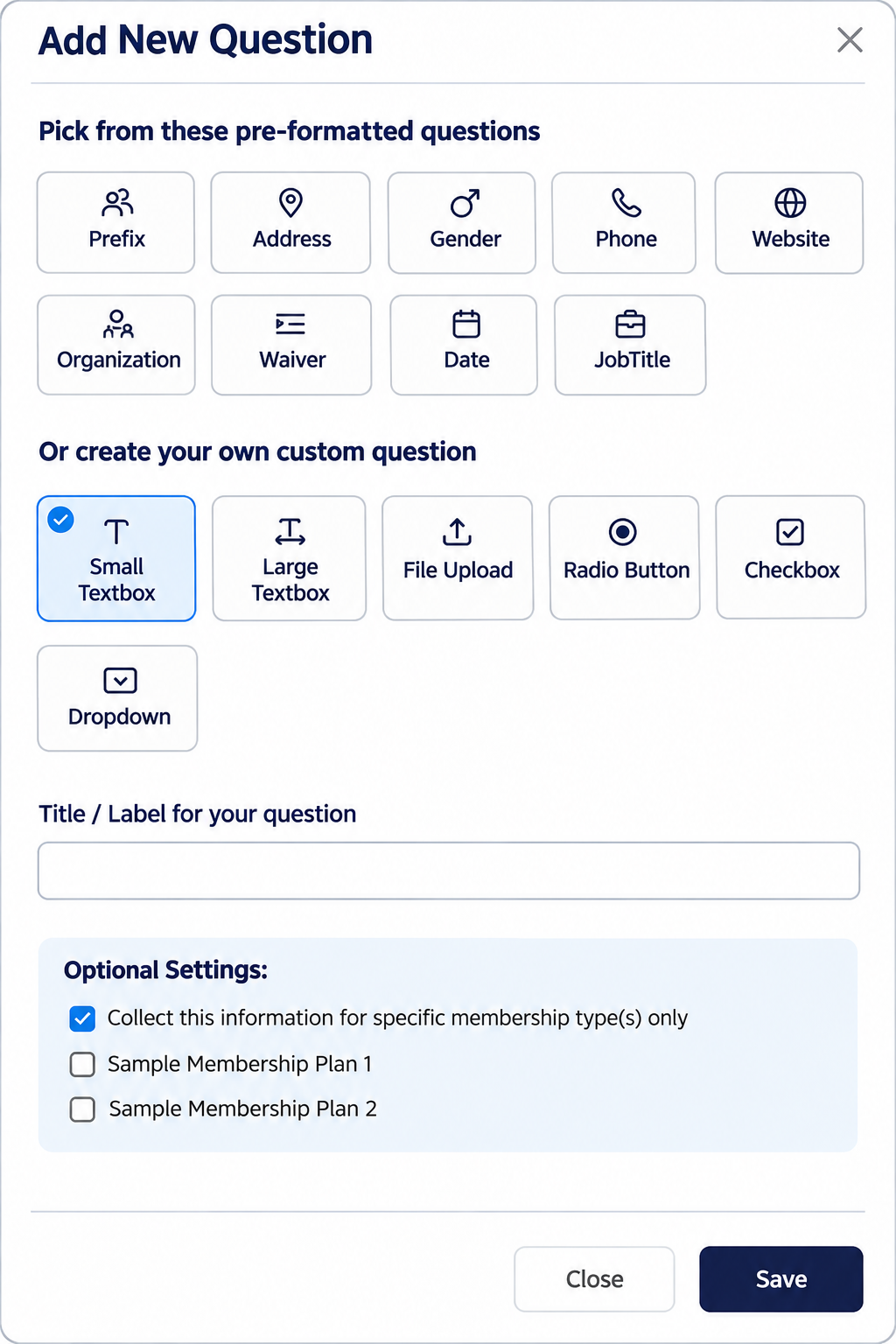
To collect more details from registrants, you can add extra questions to the registration form using either pre-formatted fields or custom questions.
How to Add Questions
- Go to the event’s Registration Form settings
- Click Add New Question
- Select a pre-formatted question or create a custom field
Pre-Formatted Questions
Pre-formatted questions are ready-to-use fields designed for collecting commonly requested information. These fields are pre-structured and require minimal setup.
Available Pre-Formatted Fields
- Prefix (Mr., Ms., Dr., etc.)
- Address
- Gender
- Phone Number
- Website
- Organization / Company Name
- Waiver or Agreement checkbox
- Date field
- Job Title
These options help standardize data collection while saving setup time.
Custom Questions
For event-specific or detailed information, you can create custom questions tailored to your needs.
Custom Field Types
You can choose from the following field types:
- Small Text Box
Suitable for short responses such as city names, ID numbers, or brief notes
- Large Text Box
Ideal for longer responses such as special requests or background information
- File Upload
Allows attendees to upload documents such as resumes, ID proofs, signed waivers, or certificates
- Radio Buttons
Enables selection of one option from a predefined list, such as meal preference
- Checkboxes
Allows multiple selections, such as session choices or checklist items
Each custom field can be configured with labels, instructions, and validation rules.
Advanced Option: Collect Fields for Specific Membership Types
You can choose to display certain registration questions only for selected membership types. This allows you to tailor the registration experience based on attendee categories.
This option is useful when:
- Certain membership levels require additional information
- VIP or premium members must provide extra details
- Different attendee groups need to answer different questions
By assigning questions to specific membership types, you ensure a more relevant and streamlined registration process.
The registration form is flexible and fully customizable, allowing you to:
- Use default name and email fields
- Add pre-formatted questions for quick setup
- Create custom fields for detailed data collection
- Display specific questions for selected membership types
These options help you gather accurate information and deliver a smooth, well-organized event experience.